3.1 Registering
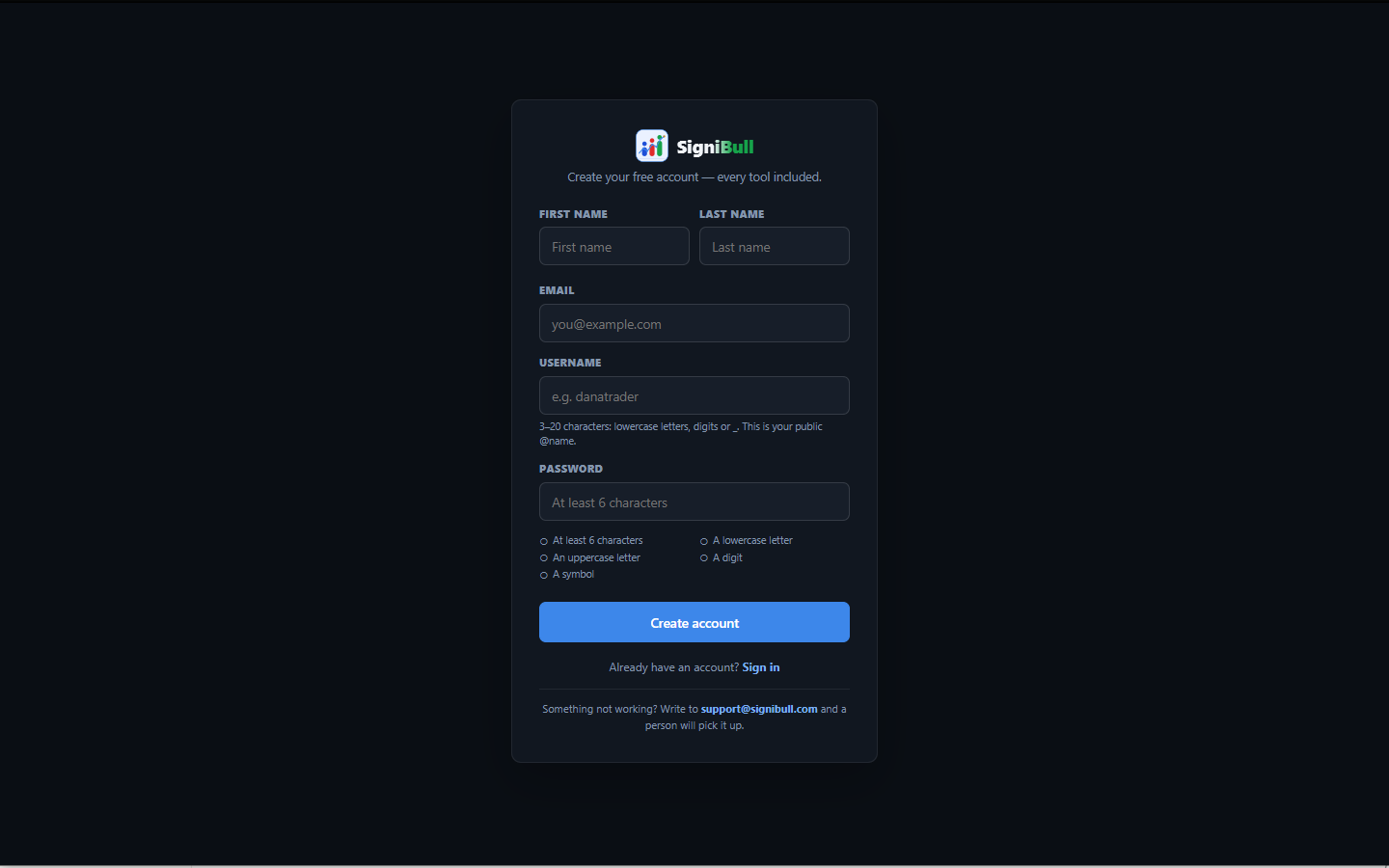
From the welcome page, choose Join free, or open the app and click Create an account on the sign-in card. The form asks for five things:
- First name and last name
- Shown together as your display name on posts, in the members list of a channel, and on your profile.
- Used to sign in and to confirm the account. It is never shown to other users — see chapter 22.
- Username
- 3–20 characters, lowercase letters, digits or underscores. This is your
public
@name: it appears on your profile and it is how other people find you to follow. The field cleans up what you type as you type it, so a capital or a space simply will not appear. It must be unique across the whole app. - Password
- At least 8 characters.
Then press Create account.
3.2 Confirming your email
Registration does not sign you in straight away. The app sends a confirmation link to the address you gave and shows a One more step card while it waits.
- Open the email and click the link. It comes from
Admin@tradetogether.biz. If nothing has arrived after a minute, check your spam folder. - Come back to the app and press I've confirmed — check again.
That button works whether you opened the link in this browser or somewhere else entirely — on your phone, or in a mail client that uses its own browser. If the link was opened elsewhere, the app signs you in using the details you just typed rather than telling you it cannot find anything.
- Resend email
- Sends a fresh confirmation link to the same address.
- “That confirmation link is invalid or has expired”
- Confirmation links do not last forever. Sign in with your email and password and a new one is sent automatically.
Until the address is confirmed you cannot sign in. This is also why an address that was registered and then abandoned stays taken — the account exists even though nobody ever used it.
Confirming from your phone. If you open the confirmation link on a phone that has the SigniBull app installed, the app opens on its sign-in screen and tells you the address is confirmed; sign in there with the password you chose. Without the app, or on a computer, the link continues to the website as before. Nothing about your account travels in the link — it only says that the address is confirmed.
3.3 Signing in and out
Sign in with your email address and password. Your session persists, so you stay signed in on that browser until you sign out.
The sign-in, sign-up and password-reset screens run a quick check that you are a person and not a script. Usually you see nothing; now and then a box asks you to tick it.
To sign out, click your name at the top right and choose Sign out. That ends the session on this device only; you stay signed in anywhere else you have used the app.
Changing your password ends every other session. If you change it — from the sign-in screen’s Forgot your password? link — anyone still signed in as you on another browser, another computer or a phone is signed out at that moment. You stay signed in where you made the change. That is the point of changing it in a hurry, and until 27 August 2026 it did not happen: the old sessions carried on working.
3.4 Deleting your account
You can delete your account yourself, from Settings. Scroll to Delete your account at the foot of the page, type DELETE into the box to confirm, and press Delete my account.
It cannot be undone. There is no grace period and no copy kept for you to ask for later. Deleting removes your profile, your portfolio and orders, your trade log, your watchlists, your alerts, your posts and replies, your messages, your friends and follows, and your channel memberships.
One thing can stop it, and the app will tell you if it applies to you: if you created a channel, group or list that other people are in, deleting your account would delete that space and everyone's posts inside it along with your own. Your data is yours to remove; theirs is not. Hand the space over to somebody else or delete it yourself first, then come back and the deletion will go through.
Signing out, or clearing your browser storage, does neither of these things — it just ends the session on this device. Only this button deletes the account.